Overview
Control Google Nest thermostats from Crestron Home. Adjust temperature setpoints, HVAC modes, and fan timers with a custom radial gauge interface.
Features
- Heat, Cool, Auto, and Eco modes
- Dual setpoint control (heat and cool)
- Fan timer with configurable duration
- Custom radial gauge UI
- Automatic thermostat discovery
Setup Guide
Nest devices are controlled through Google's Smart Device Management (SDM) API. Each installation uses its own free Google Cloud project plus a one-time $5 Device Access registration fee paid directly to Google. Plan on about 25 minutes for the one-time setup; once complete, the driver runs unattended and your thermostats appear as native Crestron Home Climate tiles.
1 Register for Google Device Access ($5 one-time fee, paid to Google — not Zentura)
@gmail.com account; Google Workspace accounts are not supported. The $5 fee is charged once per Google account and grants lifetime API access.
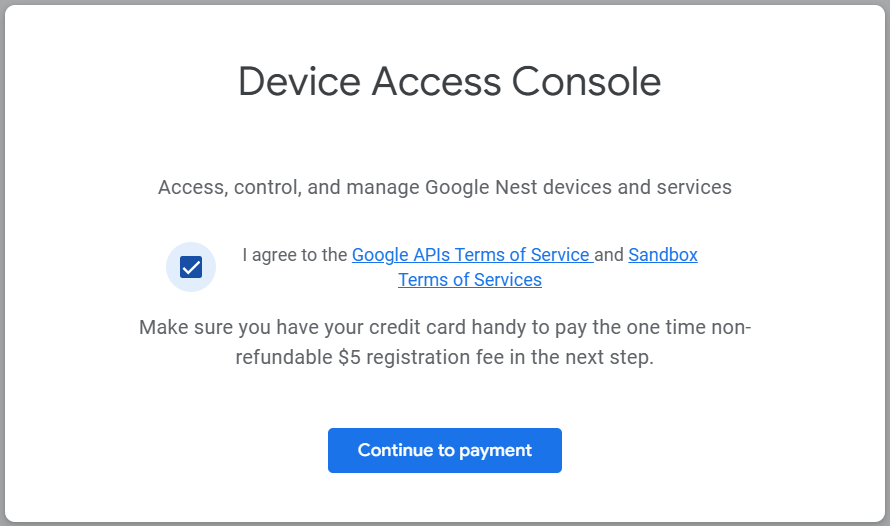
2 Create a Device Access Project and copy the Project ID
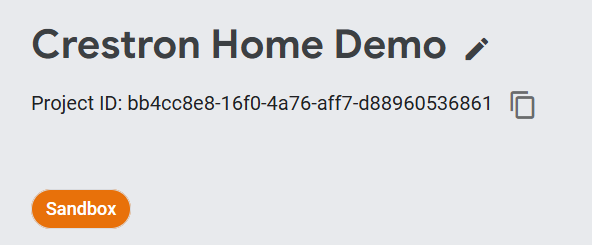
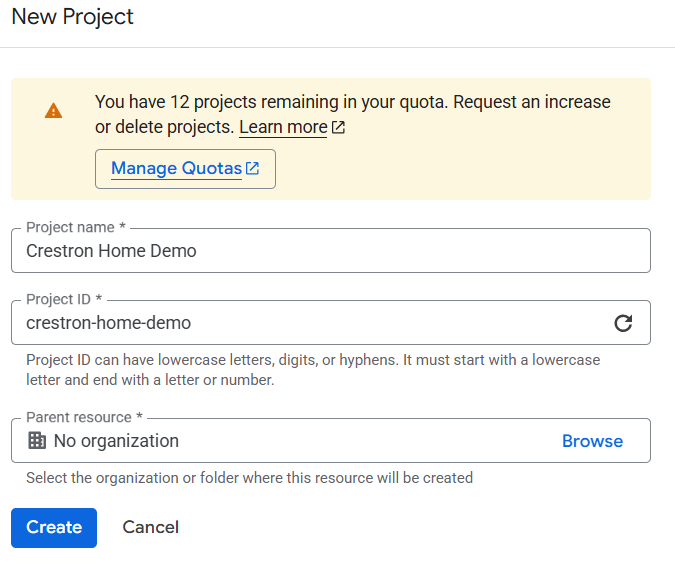
3 Create or select a Google Cloud project
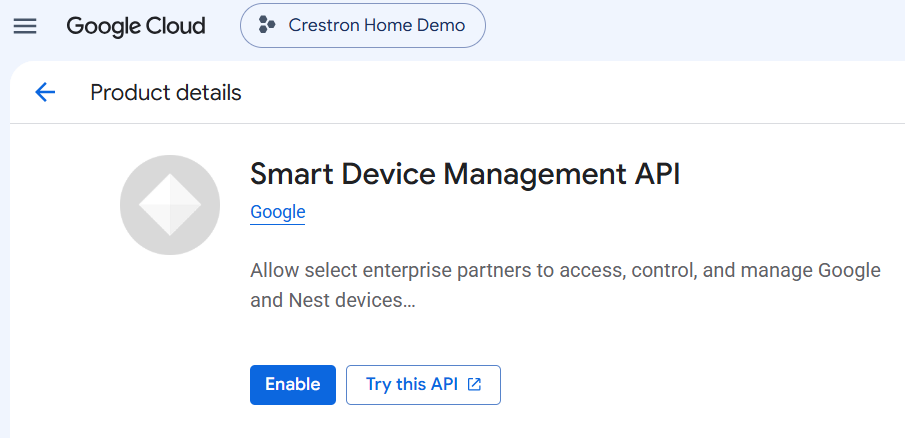
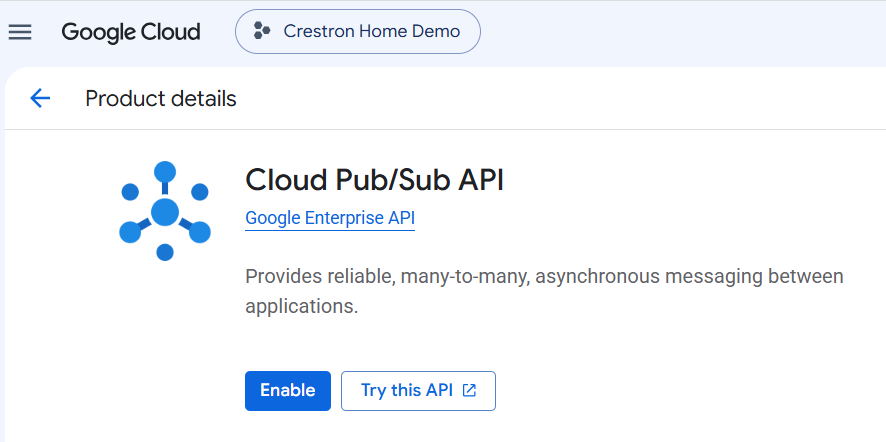
4 Enable the required Google Cloud APIs
- Smart Device Management API — lets the driver read and control your thermostats.
- Cloud Pub/Sub API — lets the driver receive real-time mode / setpoint / humidity updates within ~1 second of a change.
5 Configure the OAuth Consent Screen and publish to production
- User type:
External(the only option for personal Gmail accounts). - App name: any (e.g. Crestron Home Nest); User support email and Developer contact: your own email.
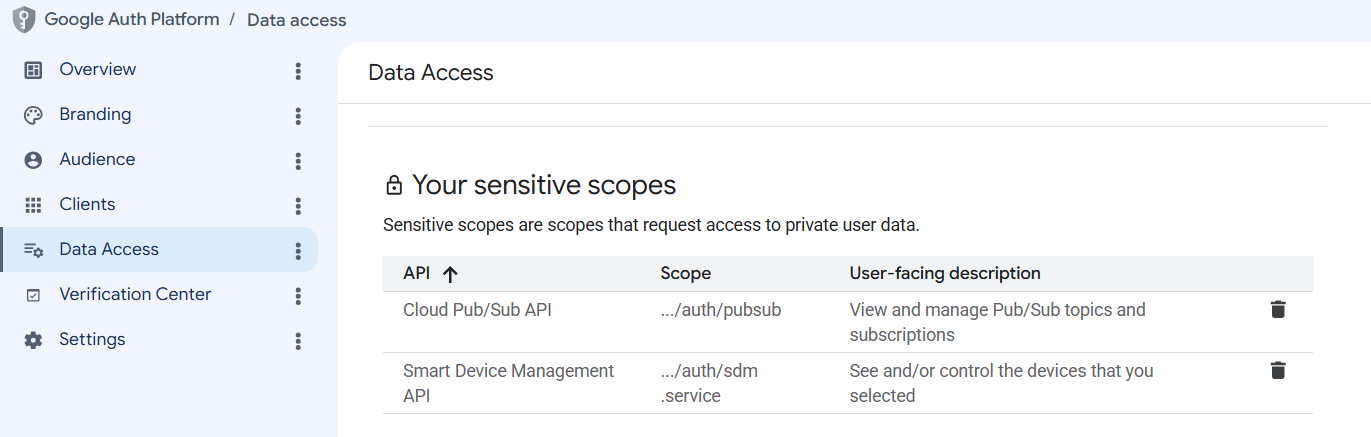
- Add the scopes: https://www.googleapis.com/auth/sdm.service AND https://www.googleapis.com/auth/pubsub
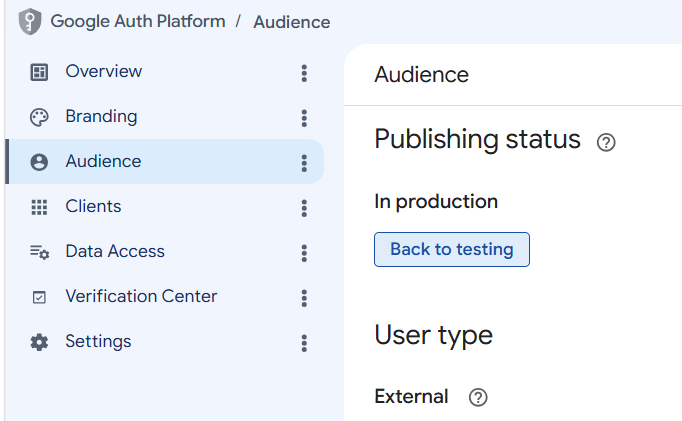
- Publishing status → In production. This is critical — if you leave it as Testing, Google expires the refresh token after 7 days and the driver stops working. Personal-use apps with only SDM + Pub/Sub scopes are not subject to Google's brand-review process.
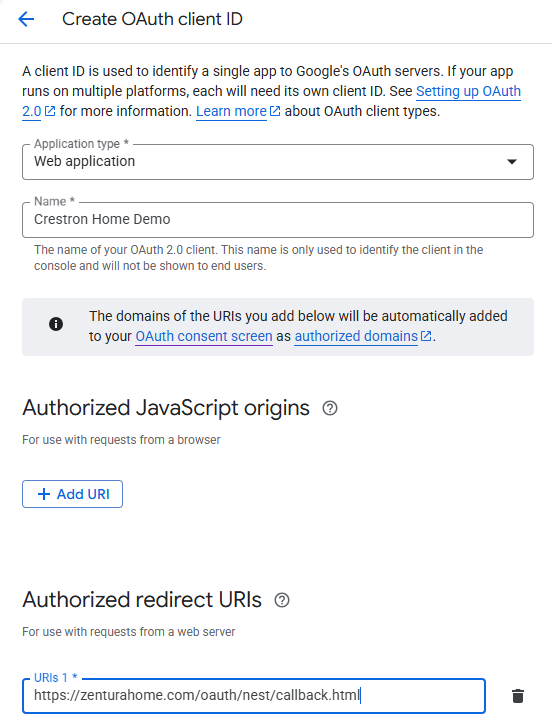
6 Create an OAuth 2.0 Client ID and link it to the Device Access project
- Application type:
Web application - Authorized redirect URIs: add exactly https://zenturahome.com/oauth/nest/callback.html
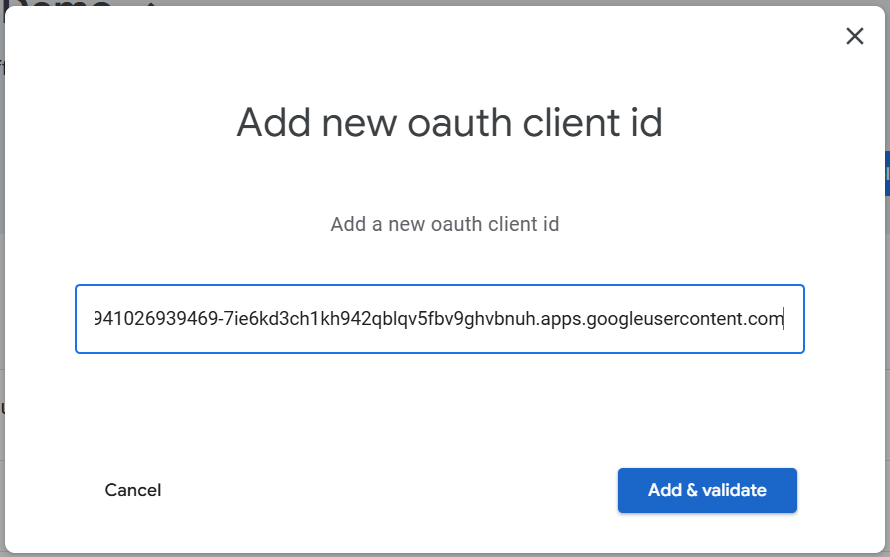
Now return to the Device Access Console, open your project, and paste the new Client ID into the OAuth Client ID field on the project page. (If you skipped this earlier in step 2, this is where you wire it up.)
7 Authorize your Nest devices via the Zentura sign-in page
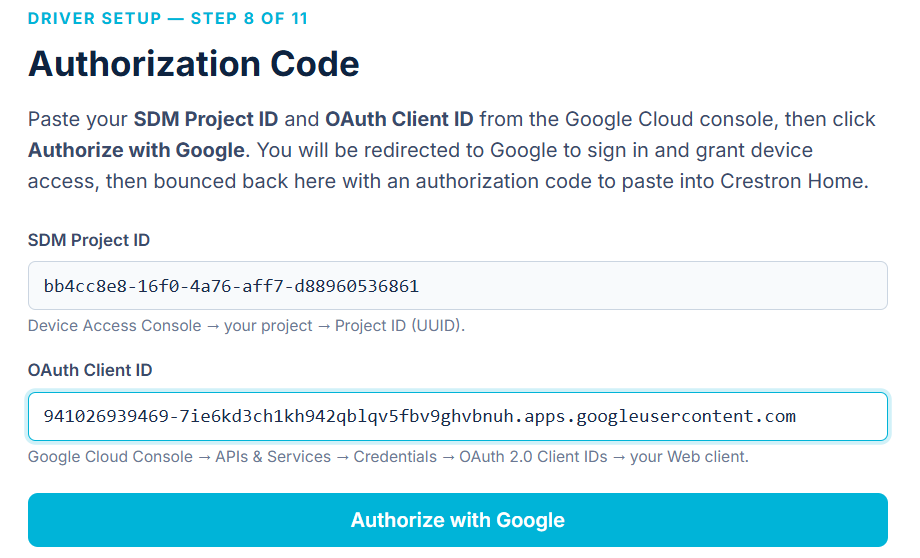
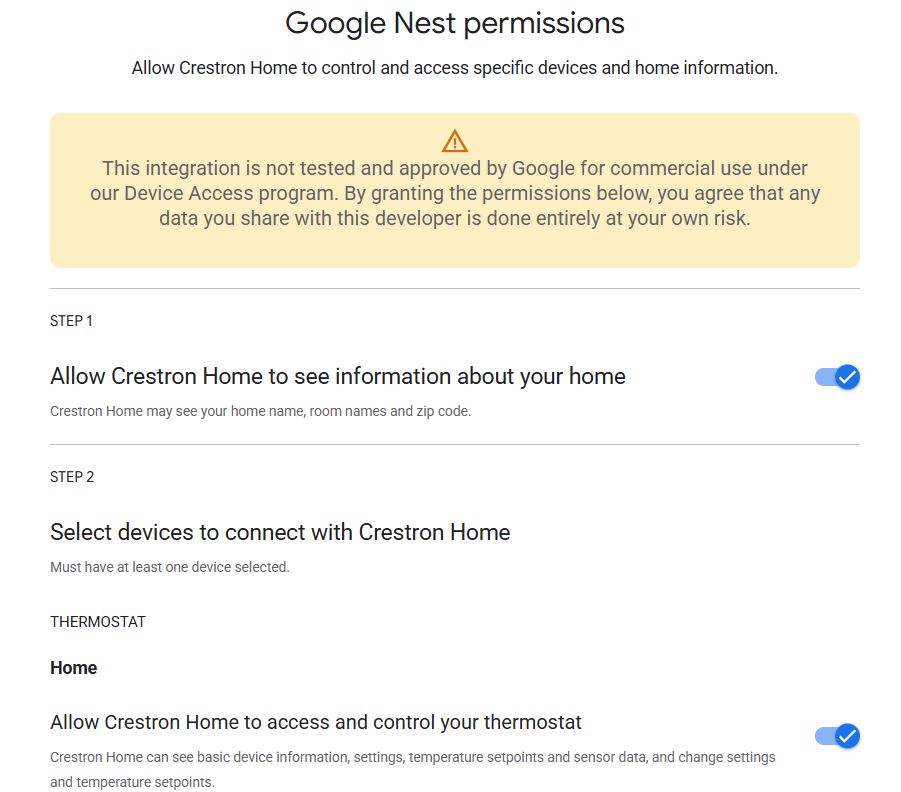
sdm.service and pubsub scopes so you can enable real-time updates later just by setting GCP Project ID in the driver. Google redirects you back to the same callback page.
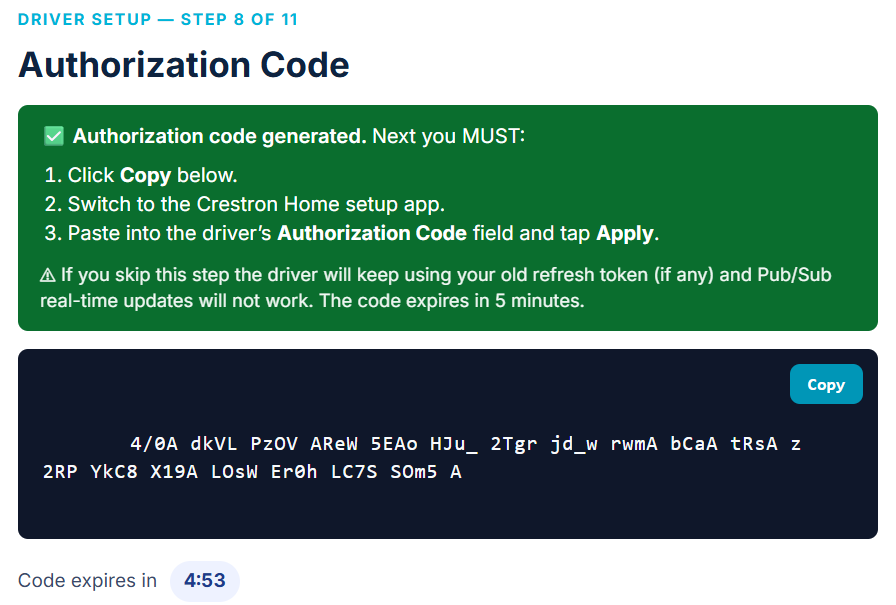
8 Copy the Authorization Code
⚠️ Verify the consent screen showed BOTH scopes during sign-in: "See and/or control the devices that you selected" AND "View and manage Pub/Sub topics and subscriptions". If you only saw the SDM permission, the
pubsub scope is not registered on your OAuth Consent Screen (step 5) — add it there and repeat steps 7–8, otherwise the driver will hit 403 insufficient scope errors on every Pub/Sub pull.
9 Note your Google Cloud Project ID (driver auto-creates the Pub/Sub topic)
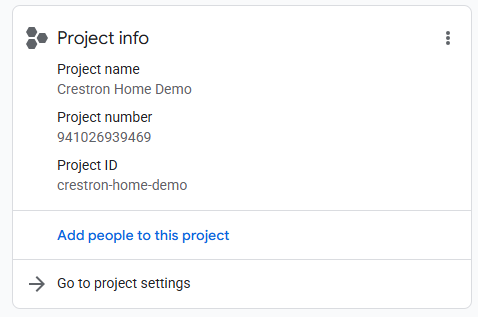
Your Google Cloud Project ID is the alphanumeric identifier shown in the top banner of the Cloud Console or in the project selector (e.g.
my-home-nest-123456) — not the Device Access Project ID from step 2. Copy it; you'll paste it into the driver's GCP Project ID field in step 11.The driver will automatically create:
- Topic projects/{your-gcp-project-id}/topics/nest-events
- Pull subscription projects/{your-gcp-project-id}/subscriptions/nest-events-sub
Prefer to create them yourself? You still can — open Pub/Sub → Topics → Create Topic with the names above (leave "Add a default subscription" checked), then paste the subscription path into the driver's optional Pub/Sub Subscription Path field instead of GCP Project ID.
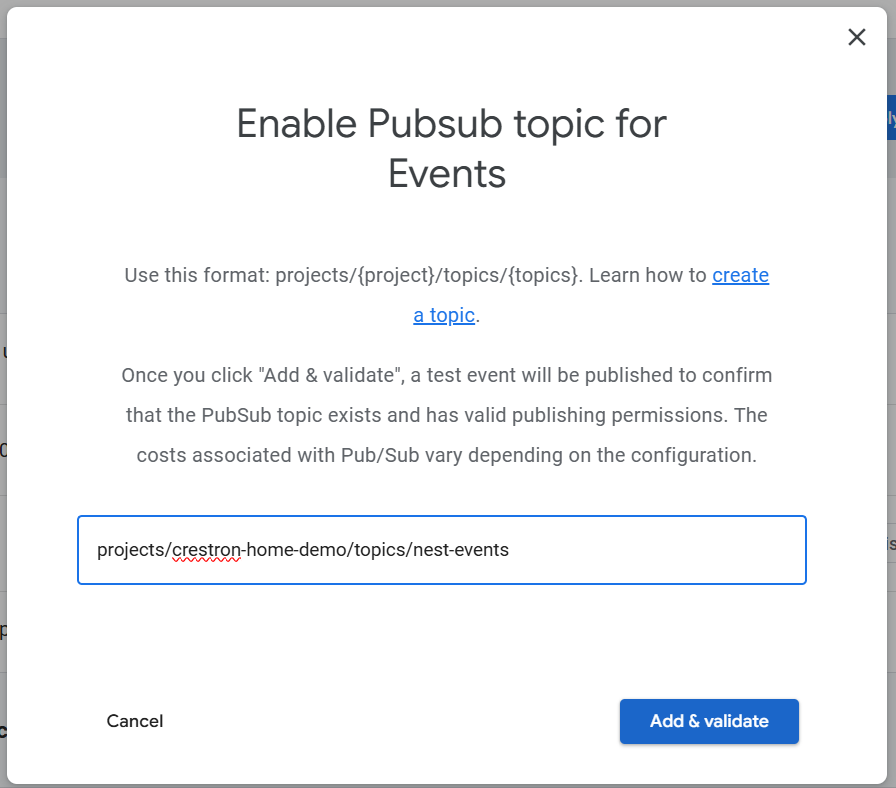
10 Register the Pub/Sub topic in the Device Access Console
- Enable Events:
Enabled - Pub/Sub topic: paste the topic name from step 9, e.g. projects/{your-gcp-project-id}/topics/nest-events
If validation fails with a permissions error: open the topic in Cloud Console → Pub/Sub → Topics, click the topic, go to the Permissions tab → Grant Access, paste sdm-publisher@googlegroups.com as the principal (this is a Google-managed group, not a service account), choose role
Pub/Sub Publisher, click Save, then retry Add & Validate.If you skip this step the driver still works in polling-only mode — trait changes appear within one polling interval (default 60s) instead of within 1s.
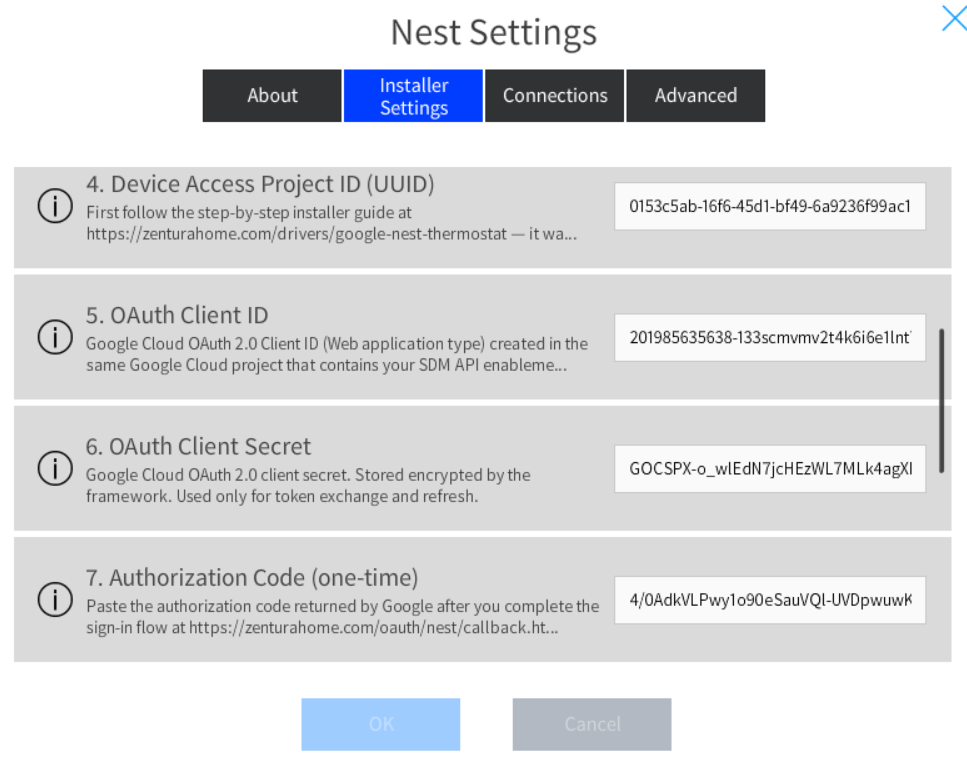
11 Pair the driver in Crestron Home
- Device Access Project ID (UUID) — step 2
- OAuth Client ID — step 6
- OAuth Client Secret — step 6
- Authorization Code — step 8
Enable real-time updates (recommended): after pairing, open the driver settings tab and set Google Cloud (GCP) Project ID (from step 9). The driver auto-provisions
nest-events + nest-events-sub in your GCP project on the next reload and pushes thermostat changes within ~1 second. Leave blank to run in polling-only mode.Verify it's working: enable Enable Debug Log on the driver and watch for a periodic
PubSub: heartbeat state=RUNNING pulls=N events=N … line (every 5 minutes). state=DISABLED means you intentionally left GCP Project ID blank (polling-only). state=SCOPE_MISSING means the OAuth token is missing the pubsub scope — re-pair via the callback page.From this point forward the driver runs unattended; if you ever revoke access in Google or change OAuth credentials, repeat steps 7 → 11.

Crestron Processor Compatibility
This driver works with all Crestron Home processors that support custom drivers, including:
- Crestron Home CP4-R
- Crestron Home MC4-R
- Any processor running Crestron Home OS 4.0 or newer
Licensing
Each license is tied to a single Crestron Home processor by MAC address. Lifetime updates are included with your one-time purchase. See the Terms of Service for full licensing details.